Conditional theming with CSS selectors
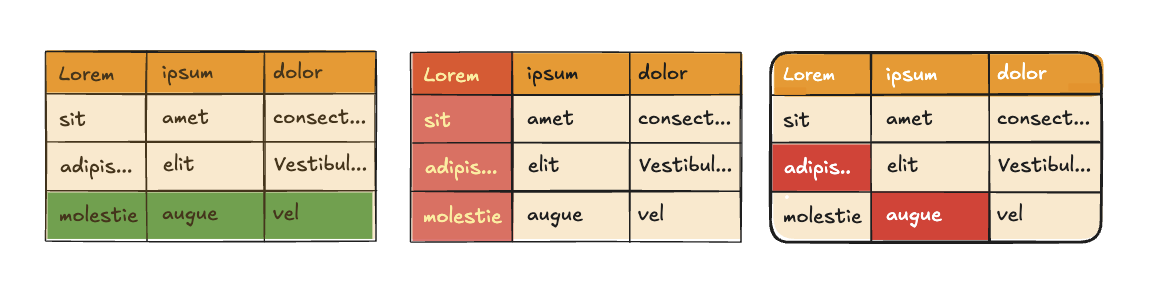
Highcharts Grid can be themed/styled conditionally in two main ways:
- JavaScript-driven styling, using the
classNameandformatterAPI properties to apply classes or inline styles based on data at runtime. - CSS-driven styling, using selectors (such as
data-value,data-row-index, anddata-column-id) to express shared styling rules declaratively.
If the styling is part of a theme—for example, when multiple grids should share the same look and the same conditional styling rules—CSS is often a great fit. It keeps the logic centralized, easy to override per theme, and consistent across instances.
Limits of CSS-based conditional logic
CSS selectors can only perform basic string-based matching, such as:
- Exact matches (
data-value="Sales") - Substring matches (
data-value*="Executive") - Positional rules (
nth-of-type, row index attributes)
This makes CSS well-suited for simple, declarative conditions that are stable across grids.
More advanced logic—such as numeric comparisons, ranges, thresholds, cross-column conditions, or computed values—cannot be expressed in CSS. In those cases, styling must be handled in JavaScript, typically by assigning classes or styles via the className or formatter APIs.
A common pattern is to use JavaScript for data interpretation and CSS for presentation, allowing themes to remain reusable while still supporting complex conditional logic where needed.
Where theming variables can be applied
The grid’s theming variables are designed to be applied only to these table elements:
tr(rows)td(cells and columns)th(headers)
This is recommended because the built-in interaction model (row hover, column hover, opacity blending, etc.) is implemented around those elements. If you want to style content inside those elements (including pseudo-elements like ::before), use regular CSS, not theming variables.
If you need to style elements beyond color and backgroundyour should also use regular CSS, not theming variables.
Individual cells
Style a specific cell by value
td[data-value="Sales"] {--hcg-cell-background: lightgreen;}
This targets a single cell based on its data-value and sets the cell background via theming variables.
Override the row-hover background for one specific cell
td[data-value="Manager"] {--hcg-cell-background: lightblue;--hcg-row-hover-background: lightblue;}
This is a useful pattern, but it’s important to understand what it does:
- The theme typically defines a default
--hcg-row-hover-backgroundthat applies to all rows/cells on hover. - When you redefine
--hcg-row-hover-backgroundon a singletd, you are not changing the hover background for the whole row. - Instead, you are changing the row-hover background as it applies to that cell only.
Result:
The row still uses the theme’s default hover background overall, but the “Manager” cell will use the overridden hover background even when you hover other cells in the same row (because the row-hover effect is applied per-cell, and the variable resolution happens on each td).
A rough pure-CSS equivalent would be “make this cell’s hover-layer win over the default,” similar in spirit to what people sometimes reach for with !important—but without needing !important, and without breaking the theme’s interaction model.
This is the right approach if you want:
- the cell to keep its normal cell-hover behavior, but
- the cell’s row-hover layer to be different from the rest of the row.
Add a decorative highlight using regular CSS
td[data-value="Katie"]::before {content: "";position: absolute;inset: 0;pointer-events: none;border: 2px dashed #b54242;}
This example uses a pseudo-element overlay. Because theming variables only apply to tr, td, and th, decorative overlays like this should be done with standard CSS.
Individual rows
Style a row by index
tr[data-row-index="0"] {--hcg-cell-background: green;--hcg-cell-color: #fff;--hcg-row-hover-opacity: 30%;}
This applies a row-level style using theming variables on tr, affecting all cells in that row and its hover opacity.
Style a row based on its cell content
tr:has(td[data-value*="Executive"]) {--hcg-cell-background: blue;--hcg-row-hover-background: blue;--hcg-cell-color: #fff;}
With :has(), the row can react to what it contains while keeping variables applied on a supported table element (tr). (This affects all cells in that row, since the variables are set on the row.)
Individual columns and headers
Style the first column by position
td:nth-of-type(1) {--hcg-column-hover-background: #393939;--hcg-column-hover-color: #fff;--hcg-cell-hover-background: #393939;--hcg-cell-hover-opacity: 80%;}
This targets the first column structurally and customizes column and cell hover behavior.
Style a specific column by ID (cells)
td[data-column-id="Departement"] {--hcg-row-hover-opacity: 40%;--hcg-cell-background: lightgreen;--hcg-cell-hover-color: white;--hcg-cell-hover-background: green;--hcg-cell-hover-opacity: 100%;}
This targets a semantic column (Position) rather than relying on column order.
Match the header styling to the column (header cell)
th[data-column-id="Department"] {--hcg-header-background: green;--hcg-header-color: #fff;}
This keeps header and column styling aligned using the same column identifier.
Wrap selectors for theme scoping
If you want these rules to be part of a reusable theme, scope them to a theme class, for example:
.theme-conditional-cells {td[data-value="Sales"] {--hcg-cell-background: lightgreen;}/* additional rules go here */}
That keeps your conditional styling logic shareable across multiple grids using the same theme, while still allowing a JavaScript approach (className / formatter) when conditional styling needs to be computed dynamically per grid instance.
Demo
All code examples in this article are implemented in this demo: